Sleekmeeter-Setup.exe
Checks for Voicemeeter, downloads VB-Audio's official installer and runs it first if needed, then installs Sleekmeeter. Restart Windows afterward so Voicemeeter's drivers work.
Get the latest releaseFor Voicemeeter Standard · Banana · Potato
Voicemeeter keeps doing the audio. Sleekmeeter is the mixer you actually want to look at and use: twelve themes, fades that never click, talk-over ducking, a soundboard, Be right back, and a remote on your phone.
Windows 10 or 11 · free · MIT license
A theme changes shapes and materials, not just colors. Faders turn into capsules, hearts, tick marks or starbursts. The window buttons, tray panel and volume overlay follow along.
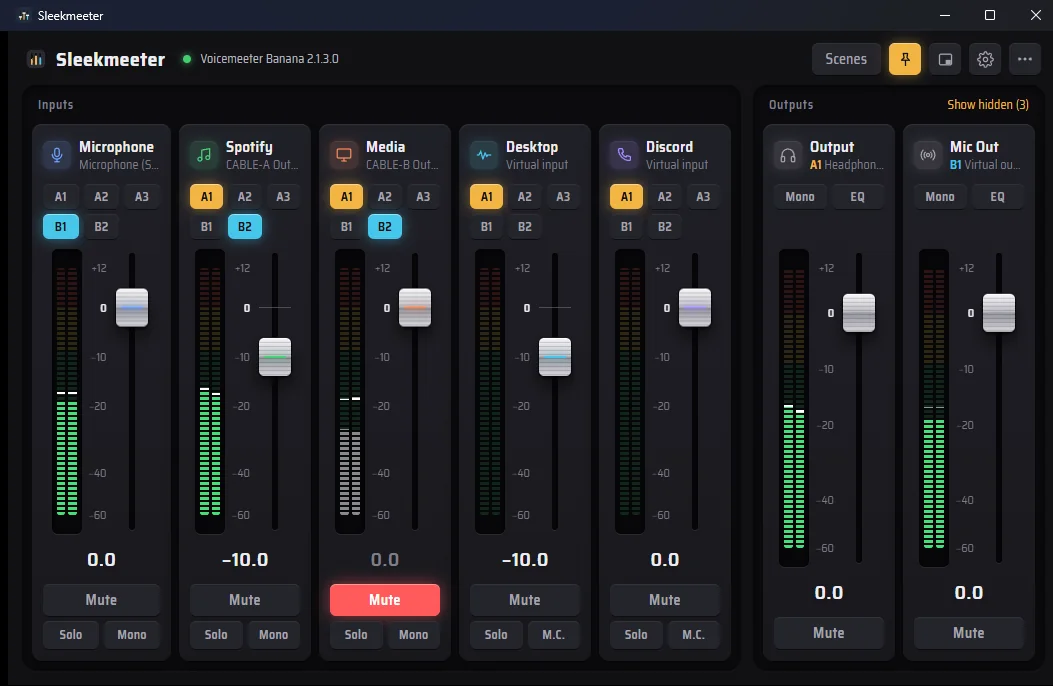
Every change glides. Meters show post-fader level on the same scale as the fader, so you see signal and fader position together.
No clicks, no jumps. Typed levels, double-click to 0 dB, volume shortcuts and scene changes all glide, and you set the fade times yourself. Dragging a fader is always direct.
-10 or +3 dB.Pick the channel that talks, the channels to turn down and by how much. Add Discord under Or when these talk and the game also dips when a friend speaks. Ducked channels wear a Ducking tag, and their faders stay exactly where you set them.
A Starts at slider lights up with your voice so you can set the knob just under your speaking level.
Mute your mic, turn the game down and bring up music, all with fades. Press Back live and everything returns exactly as it was.
Trigger it from a shortcut, a Twitch chat command, your phone, or an OBS scene.
Soundboard, chat commands, an OBS overlay and a phone remote, all running from the tray without touching the internet beyond what you turn on.
Add wav, mp3, ogg and flac files, or a whole folder, and each becomes a button. Send them to a Voicemeeter virtual input and every sound appears in the mixer as its own channel, so you decide whether it goes to stream, headphones or both.
Add commands like !brb, !scene and !sound. Leave the last box empty and the command uses what is typed after it, so !sound airhorn plays airhorn.
Sleekmeeter joins chat as a silent, anonymous viewer. No sign-in, nothing is ever posted. Choose who can use commands (you, your mods, or everyone) and set a wait time against spam.
Add a Browser source in OBS and paste the address from Settings. You get a see-through overlay with a red MUTED or amber BRB badge, a mic meter, and the name of the sound that just played.
Connect OBS and Sleekmeeter follows your scenes: load a Voicemeeter scene, start or end Be right back, or react when you go live. A red LIVE tag shows in the header. Sleekmeeter only listens and never changes anything in OBS.
Open the address on a phone or tablet on the same Wi-Fi. You get faders and mute buttons for every channel, Be right back, scenes, sounds and output profiles.
The long code in the address is the password. Make a new key signs every phone out. It never leaves your home network.
The fiddly parts of a Voicemeeter setup, handled for you.
Save the devices your outputs use right now as a setup, then switch between them. Turn on Auto and Sleekmeeter switches when one of a setup's devices connects, then restarts the audio engine so it is picked up.
A scene saves your whole setup. Rules load one automatically: when valorant.exe starts, load Gaming, switch to Headphones and use the Neon theme. When the last app closes, everything goes back.
Like Windows' own mixer, but it turns an app down before Voicemeeter hears it. A green dot shows who is playing right now. Send an app to another playback device, such as Discord into a Voicemeeter virtual input.
The ⋯ menu holds the helpers. Mic chain has noise gate, compressor and denoiser sliders with one-click presets (Streamer voice, Gentle, Noisy room) and a live meter. The Setup assistant sets your A1 and B1 routing for Just gaming + chat or Streamer + Discord, and shows what will change before you press Apply routing. Hear yourself plays back five seconds of your stream mix so you hear what viewers hear.
Record inputs or outputs, choose the format and bit depth, channels from mono to 7.1, sample rate, MP3 quality, or one file per channel. A meter warns you before a recording clips. Drop an audio file on the window to play it back.
See how loud each channel was over the last 5 minutes to 3 hours, with a red line at 0 dB. It also lists the loudest level, the seconds spent over 0 dB, and how long each channel had sound. It lives in memory only and you can clear or disable it.
Mini mode is one slim row per channel with a meter, a fader and a mute button. The tray panel opens flush against the taskbar corner, in the same spot every time, on any taskbar edge.
Hold a key and the mic opens, then closes a moment after you let go. Push to mute works the opposite way.
Unplug USB headphones or lose Bluetooth and Sleekmeeter restarts the audio engine when the device returns.
Mute, volume, show the window, scenes, sounds, recording, ducking and BRB from any app, with an on-screen overlay.
Talk for 8 seconds and it tells you if your mic is too quiet or too loud, and can set the fader for you.
New releases are checked against GitHub's checksum, installed and reopened for you.
Finds the usual problems: missing devices, shortcuts that could not register, a broken OBS link.
Voicemeeter is made by VB-Audio and is not included. Setup downloads it from vb-audio.com if you do not have it yet.
Checks for Voicemeeter, downloads VB-Audio's official installer and runs it first if needed, then installs Sleekmeeter. Restart Windows afterward so Voicemeeter's drivers work.
Get the latest releaseJust Sleekmeeter, for PCs that already have Voicemeeter. Settings and scenes live in your %APPDATA% folder.
Unzip anywhere and run Sleekmeeter.exe. Settings and scenes stay in a folder next to it.
Needs Windows 10 or 11 and Voicemeeter Standard, Banana or Potato. Sleekmeeter loads Voicemeeter's remote library and adapts its layout to the edition you run.
Want to look around first? Open the project's src/index.html in any browser to run the interface against a simulated Voicemeeter Banana. That is how the clips on this page were recorded.